Table of Contents
- Why Video Editing Is the Secret Weapon of Successful YouTubers
- The Best Free Video Editing Software for YouTube in 2026
- AI-Powered Editing Tools That Are Changing the Game
- Understanding the Video Editing Timeline
- Essential Cuts and Transitions
- Adding Text, Titles, and Graphics
- Audio Editing for YouTube Videos
- Basic Color Correction and Grading
- Pacing and Viewer Retention Techniques
- Exporting and Uploading for YouTube
- Key Takeaways
- Frequently Asked Questions
Why Video Editing Is the Secret Weapon of Successful YouTubers
The difference between a YouTube video with 100 views and one with 100,000 views often comes down to editing. Learning how to edit YouTube videos for beginners is not about fancy effects or Hollywood-level production – it is about pacing, clarity, and keeping viewers engaged from the first second to the last. YouTube’s algorithm heavily rewards watch time and retention, meaning well-edited videos that hold attention get recommended to more viewers.
Consider MrBeast, the platform’s most subscribed individual creator with over 477 million subscribers as of early 2026. His team spends days editing a single video, meticulously cutting every second of dead time to maintain maximum engagement. While you do not need his budget or team, the principles behind his editing style are accessible to anyone: cut the boring parts, emphasize the exciting moments, and never let the viewer’s attention drift.
YouTube currently has over 2.7 billion monthly active users, and over 500 hours of video are uploaded every minute. Standing out in this sea of content requires more than just a good idea – it requires execution, and editing is where execution happens. The good news is that learning how to edit YouTube videos for beginners has never been easier, thanks to powerful free software, AI-assisted editing tools, and thousands of tutorials. In 2026, budget $0 for video editing software – free options like DaVinci Resolve and CapCut cover 95% of what any creator needs.
The Best Free Video Editing Software for YouTube in 2026
You do not need to spend hundreds of dollars on editing software. These free options are capable of producing professional-quality YouTube content, and in many cases rival or exceed paid alternatives.
DaVinci Resolve (Best Overall Free Editor)
DaVinci Resolve by Blackmagic Design is the most powerful free video editor available in 2026. It includes professional-grade editing, color correction, visual effects, motion graphics, and audio post-production tools – all in a single application. The free version has almost no limitations for YouTube creators. Major films and TV shows are edited in DaVinci Resolve, so you are using the same tool as Hollywood professionals. The learning curve is steeper than simpler editors, but the investment in learning it pays off enormously. The paid Studio version ($295 one-time purchase – not a subscription) unlocks AI-powered features like magic mask, speed warp, and advanced noise reduction, but the free version is genuinely complete for YouTube work. DaVinci Resolve is the industry standard for color grading and is increasingly the go-to for creators who want professional results without a monthly subscription.
CapCut (Best for Quick, AI-Assisted Edits)
CapCut, made by ByteDance (the company behind TikTok), has become massively popular with YouTube creators and represents a shift from manual editing to AI-assisted creation. It offers a desktop app, mobile app, and browser-based editor – all with free tiers. CapCut excels at trendy editing styles with built-in templates, AI auto-captions, background removal, AI reframing for different aspect ratios, and effects that would take hours to create manually. For short-form content under 3 minutes, CapCut’s AI-assisted workflow is typically 5 to 10 times faster than traditional editors. The free version is robust, while CapCut Pro at $9.99 per month ($89.99 per year) adds premium templates, additional AI features, and removes watermarks on certain effects. It is the fastest way to go from raw footage to a finished video, making it ideal for creators who want to publish frequently without spending hours editing.
iMovie (Best for Mac Beginners)
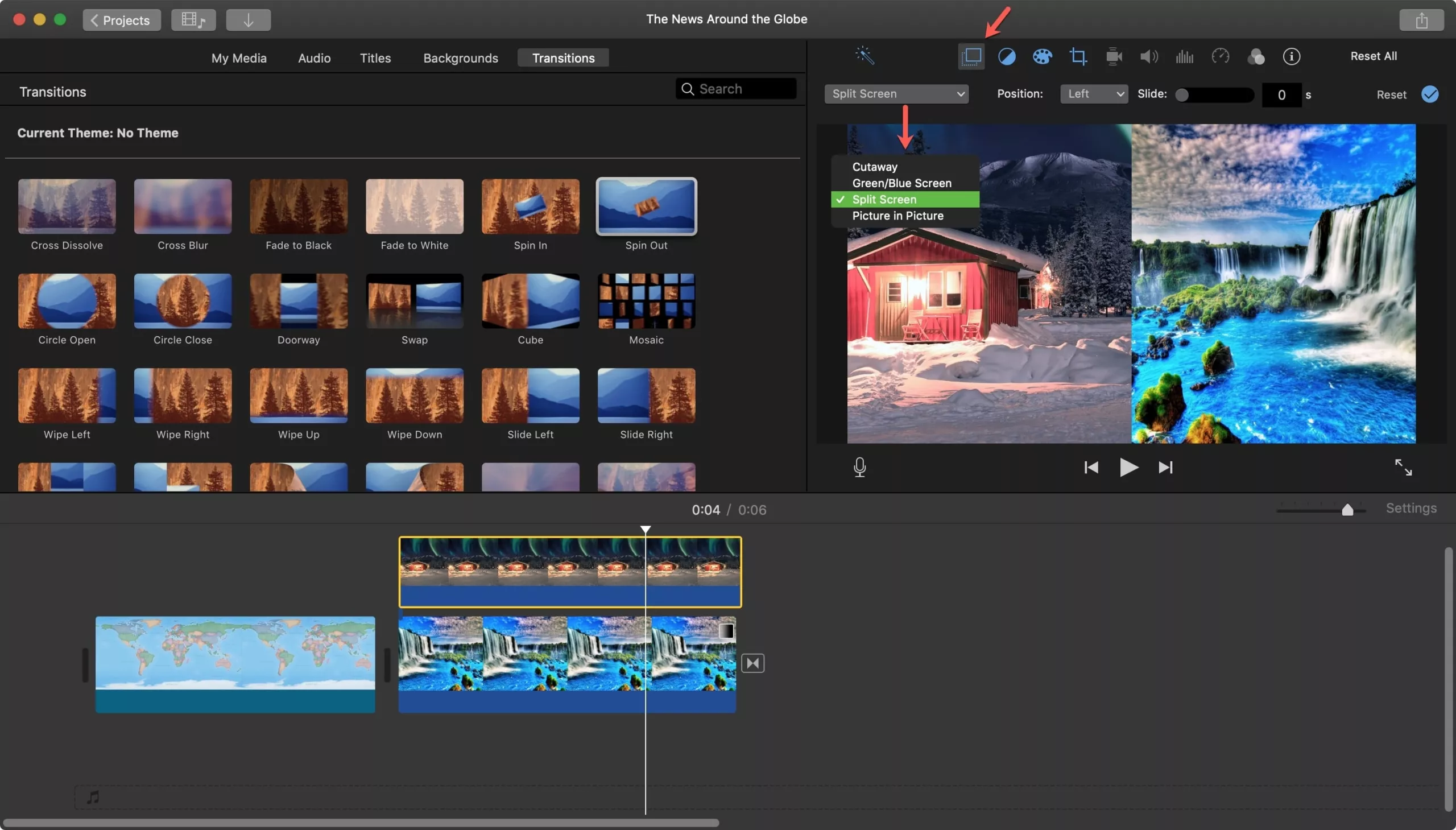
Apple’s iMovie is free for Mac users and offers the most beginner-friendly interface of any video editor. It includes templates, transitions, title effects, and basic color correction. While it lacks the advanced features of DaVinci Resolve, its simplicity makes it perfect for creators just learning how to edit YouTube videos for beginners. iMovie also benefits from Apple Silicon optimization – on M-series MacBooks and iMacs, rendering and exporting are remarkably fast. Many successful YouTubers started with iMovie before graduating to more advanced tools.
Clipchamp (Built Into Windows)
Microsoft’s Clipchamp comes pre-installed on Windows 11 and is free to use. It is browser-based with a clean, modern interface that makes basic editing straightforward. It includes stock footage, music, transitions, text overlays, and AI-powered auto-compose features. Export quality on the free plan is limited to 1080p, which is sufficient for most YouTube content. Clipchamp is ideal for Windows users who want to start editing immediately without downloading additional software.
AI-Powered Editing Tools That Are Changing the Game
The biggest shift in video editing since 2024 has been the integration of AI tools into every major editing platform. For anyone learning how to edit YouTube videos for beginners, AI features dramatically reduce the time and skill required to produce polished content.
AI Auto-Captions
Both CapCut and DaVinci Resolve now offer AI-powered automatic caption generation that transcribes your speech into animated subtitles. CapCut’s auto-caption feature is particularly polished, offering multiple caption styles and animations that match current YouTube and TikTok trends. According to viewer studies, 80% of viewers are more likely to watch an entire video when captions are available, and a large percentage watch videos with sound off in public places. AI captions are typically 90-95% accurate and require only minor manual cleanup.
AI Background Removal and Reframing
CapCut’s AI can remove backgrounds from video in real time – no green screen needed. This is valuable for creators who film in imperfect spaces. AI reframing automatically adjusts your horizontal video for vertical formats (YouTube Shorts, TikTok, Instagram Reels), intelligently tracking the subject and keeping them centered. What used to require manual keyframing now happens automatically.
AI-Powered Clip Selection
Tools like Opus Clip and Descript use AI to analyze long-form videos and automatically identify the most engaging segments for repurposing as short-form clips. Descript’s text-based editing approach lets you edit video by editing a transcript – delete a sentence from the text and the corresponding video is removed. These AI tools are transforming how creators repurpose long YouTube videos into Shorts, Reels, and TikToks without manually scrubbing through hours of footage.
AI Color Matching and Audio Cleanup
Adobe Premiere Pro ($22.99 per month on the annual plan, or $34.49 month-to-month) has integrated AI features for automatic color matching between clips, speech enhancement that cleans up poor audio, and generative extend that fills gaps in clips. DaVinci Resolve Studio ($295 one-time) offers AI-powered noise reduction, magic mask for isolating subjects, and speed warp for smooth slow motion. Even free tools like CapCut now include AI audio noise removal that produces results comparable to what required expensive plugins just two years ago.
Understanding the Video Editing Timeline
The timeline is the heart of any video editor. Understanding how it works is essential when learning how to edit YouTube videos for beginners.
What Is a Timeline?
The timeline is a horizontal strip at the bottom of your editing software where you arrange video clips, audio, music, text, and effects in sequence. Think of it as a visual representation of your video from start to finish, reading left to right. Each element sits on a separate “track” – video on one track, background music on another, voice narration on a third, and so on.
Video and Audio Tracks
Most editors support multiple video tracks (stacked vertically) and multiple audio tracks. Higher video tracks appear in front of lower ones – so a text overlay on Track 2 appears on top of your footage on Track 1. Audio tracks all play simultaneously, which is how you layer voice, music, and sound effects together. Understanding this layering concept is fundamental to creating polished videos.
The Playhead and Preview
The playhead is the vertical line that moves across the timeline, indicating the current position in your video. As it moves, the preview window shows what the video looks like at that exact point. You can drag the playhead to scrub through your footage, jump to specific sections, and identify exactly where to make cuts.
Importing Media
Before editing, import your raw footage, music files, and any graphics into your project’s media pool. Most editors support drag-and-drop from your file browser. Organize your imported media into bins or folders – “Footage,” “Music,” “Graphics,” “B-Roll” – so you can find what you need quickly during the editing process.
Essential Cuts and Transitions
The cut is the most fundamental editing technique. Mastering different types of cuts is the core of learning how to edit YouTube videos for beginners.
The Hard Cut
A hard cut is an instant switch from one clip to another with no transition. It is the most common and most professional cut type. About 95% of the cuts in a typical YouTube video are hard cuts. They are fast, clean, and do not distract from the content. Use hard cuts to remove pauses, mistakes, and dead air between sentences. This creates the fast-paced, engaging editing style that defines modern YouTube content.
The Jump Cut
A jump cut is a hard cut within the same shot – the camera does not move, but time jumps forward. This is the signature editing technique of YouTube, popularized by creators like Philip DeFranco and Casey Neistat. Film a talking-head segment in one continuous take, then cut out every pause, stutter, and unnecessary word. The result is a punchy, fast-paced delivery that keeps viewers engaged. Jump cuts work best when the subject is centered in frame so the jumps feel intentional rather than jarring.
The J-Cut and L-Cut
A J-cut starts the audio from the next clip before the video switches – you hear the next scene before you see it. An L-cut does the opposite – the audio from the current clip continues playing after the video switches to the next shot. Both techniques create smooth, professional transitions that make your editing feel cinematic rather than choppy. They are especially effective when cutting between a talking-head shot and B-roll footage.
Transitions
Transitions like cross-dissolves, wipes, and zoom effects should be used sparingly. Overusing transitions is a classic beginner mistake that makes videos look amateur. Use a cross-dissolve to indicate the passage of time. Use a dip-to-black to signify a major topic change. Avoid star wipes, spinning transitions, and other flashy effects unless they serve a specific creative purpose (like comedy). When in doubt, use a hard cut.
Adding Text, Titles, and Graphics
Text overlays and graphics help communicate information, emphasize key points, and add visual interest to your YouTube videos.
Captions and Subtitles
Adding captions to your videos is one of the highest-impact editing techniques for YouTube. Studies show that 80% of viewers are more likely to watch an entire video when captions are available, and a significant portion watch videos with the sound off in public places. CapCut and DaVinci Resolve both offer AI auto-caption features that generate subtitles from your speech. CapCut’s animated caption styles have become particularly popular on YouTube in 2026, with word-by-word highlighting that keeps viewers visually engaged. Review and correct auto-generated captions for accuracy – they are usually 90-95% accurate but require manual cleanup for names, technical terms, and slang.
Lower Thirds and Name Cards
When introducing a person or topic, use a lower-third graphic – a text box that appears in the lower portion of the screen. Include the person’s name and title or the topic being discussed. Keep lower thirds on screen for 3 to 5 seconds – long enough to read comfortably but not so long they become distracting. DaVinci Resolve’s Fusion page lets you create custom lower thirds, while CapCut offers pre-made templates that are quick to customize.
Call-to-Action Graphics
Use animated subscribe buttons, like reminders, and comment prompts as graphic overlays. YouTube’s algorithm favors videos with high engagement, so encouraging likes, comments, and subscriptions through visual prompts can meaningfully impact your growth. Place these graphics at natural break points in your content – after you have delivered value and the viewer is most receptive.
Audio Editing for YouTube Videos
Audio quality is often more important than video quality on YouTube. Viewers will tolerate imperfect visuals, but poor audio causes them to click away immediately. Here is how to handle audio when learning how to edit YouTube videos for beginners.
Background Music
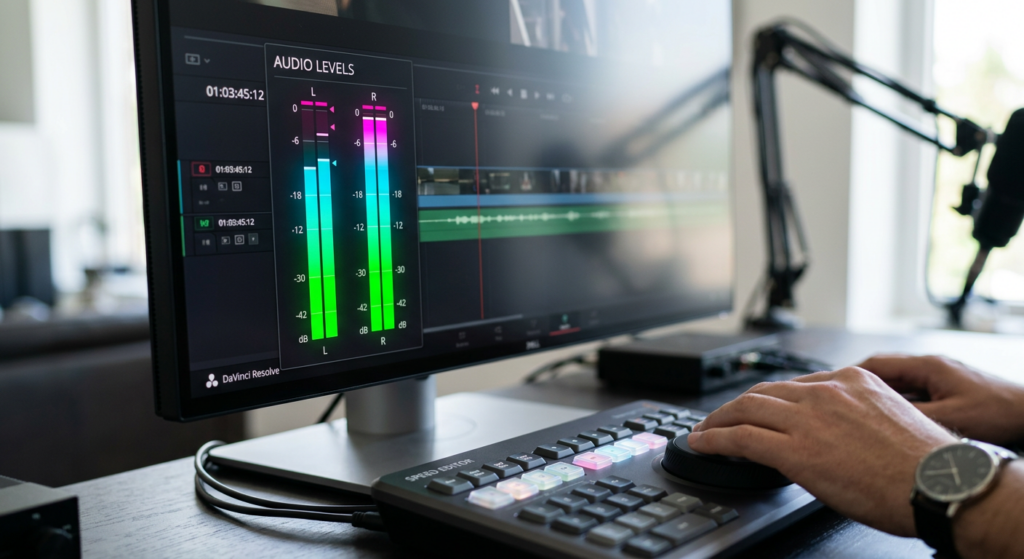
Background music sets the mood and fills awkward silences. Use royalty-free music from the YouTube Audio Library (free and built into YouTube Studio), Epidemic Sound ($15 per month), or Artlist ($12 per month with annual plan). Keep music at -20 to -25 dB below your voice level so it supports the content without competing with it. Adjust music volume dynamically – louder during montages and transitions, quieter during dialogue.
Sound Effects
Strategic sound effects add energy and emphasis. A subtle whoosh when text appears, a pop when a graphic animates on screen, or a dramatic impact at a punchline – these small touches elevate production quality significantly. Free sound effect libraries include Freesound.org and Zapsplat. Be selective – every sound effect should serve a purpose. Too many sound effects create a noisy, distracting experience.
Voice Audio Cleanup
Apply noise reduction to remove background hum, air conditioning noise, or room echo. In DaVinci Resolve’s Fairlight page, the built-in noise reduction is excellent. CapCut now includes AI-powered noise removal that produces impressive results with a single click. Normalize your voice audio to -3 dB peaks and apply light compression (3:1 ratio) for consistent volume. If your voice sounds thin or boxy, use EQ to cut muddy frequencies around 200-400 Hz and add a gentle boost around 3-5 kHz for clarity and presence.
Basic Color Correction and Grading
Color correction fixes technical issues with your footage. Color grading adds a creative look. Both contribute to a more professional final product.
White Balance Correction
If your footage looks too orange (tungsten lighting) or too blue (overcast daylight), adjust the white balance slider until skin tones look natural. Use the eyedropper tool on something that should be white or neutral gray. Getting white balance right is the single biggest improvement you can make to the look of your video.
Exposure Adjustment
If your footage is too dark or too bright, adjust the exposure slider. Lift the shadows if faces are too dark. Pull down highlights if windows or light sources are blown out. The goal is to have well-lit faces with visible detail in both the brightest and darkest areas of the frame.
Color Grading for a Consistent Look
Color grading gives your video a unified visual style. DaVinci Resolve is the industry leader in color grading – its Color page offers tools used on major motion pictures, and this is available even in the free version. For YouTube, keep it subtle. A slight warming of the overall image creates an inviting feel. A slight teal-and-orange grade (common in cinema) adds visual appeal. Consistency is key – all clips in your video should have a matching color grade so the video feels cohesive. AI color matching features in both Premiere Pro and DaVinci Resolve Studio can automatically match the look between clips shot under different lighting conditions.
Pacing and Viewer Retention Techniques
Pacing is what separates engaging videos from boring ones. YouTube Analytics shows you exactly where viewers drop off, and in almost every case, the drop-offs happen during slow, poorly paced sections.
The First 30 Seconds
YouTube data shows that the first 30 seconds are the most critical for viewer retention. Start with a compelling hook – a surprising statement, a preview of the best moment in the video, or a clear statement of what the viewer will learn. Do not start with a long intro, sponsor read, or personal story. Get to the point fast. The strongest YouTube intros in 2026 get to the value proposition within the first 5 to 10 seconds.
Pattern Interrupts
Every 15 to 30 seconds, give the viewer something new to look at. Change camera angles, cut to B-roll footage, add a graphic, show a screenshot, or zoom in. These “pattern interrupts” keep the viewer’s eyes engaged and prevent the visual monotony that causes people to click away. MrBeast’s team aims for a visual change every 3 to 5 seconds in their most engaging videos. You do not need to be that aggressive, but maintaining visual variety is essential.
Removing Dead Air
Cut every pause, hesitation, and moment where nothing is happening. Review your video at 1.5x or 2x speed during the editing process – boring sections become painfully obvious at higher playback speeds. If a section feels slow even at normal speed, cut it or condense it. AI tools like Descript can now automatically identify and remove silences and filler words from your footage, turning what used to be a tedious manual process into a one-click operation.
Exporting and Uploading for YouTube
Exporting with the right settings ensures your video looks its best on YouTube without creating unnecessarily large files.
Resolution and Frame Rate
Export at the same resolution and frame rate you recorded in. For most creators, this means 1080p (1920×1080) at 30fps or 4K (3840×2160) at 30fps. YouTube supports up to 8K resolution, but 1080p remains the sweet spot for most content – it looks sharp on all devices without requiring massive file sizes or upload times. If you shoot in 4K, exporting in 4K gives YouTube more data to work with and generally produces a sharper result even for viewers watching at 1080p.
Codec and Bitrate
Use the H.264 codec for maximum compatibility, or H.265 (HEVC) for smaller file sizes at the same quality (though H.265 encoding takes longer). For 1080p at 30fps, a bitrate of 8-12 Mbps produces excellent quality. For 4K, aim for 35-45 Mbps. YouTube will re-encode your video regardless, but starting with a high-quality upload ensures the best possible result after YouTube’s processing.
Thumbnail and Metadata
Before uploading, prepare a custom thumbnail (1280×720 pixels, compelling and readable at small sizes) and write your title, description, and tags. Your title should include your target keyword naturally. Your description should be at least 200 words and include relevant keywords in the first two lines (which appear above the “Show More” fold). Tools like TubeBuddy and vidIQ can help optimize your metadata for search visibility.
Key Takeaways
- DaVinci Resolve is the most powerful free video editor available, used by Hollywood professionals, with a free version that covers virtually everything YouTube creators need
- CapCut’s AI-assisted workflow makes it 5-10x faster than traditional editors for short-form content, with free auto-captions, background removal, and reframing
- Jump cuts – removing pauses and dead air from talking-head footage – are the signature editing technique of YouTube
- Add captions to your videos since 80% of viewers are more likely to watch the entire video when subtitles are present
- Audio quality matters more than video quality – use AI noise removal in CapCut or DaVinci Resolve, apply compression, and set proper music levels
- Hook viewers in the first 30 seconds with a compelling opening and provide visual changes every 15-30 seconds to maintain retention
- You can produce professional YouTube content spending $0 on editing software – DaVinci Resolve Free plus CapCut covers 95% of creator needs
- Export at 1080p using H.264 codec at 8-12 Mbps for the best balance of quality and file size
Frequently Asked Questions
What computer specs do I need to edit YouTube videos?
For 1080p editing, you need a minimum of 8GB RAM (16GB recommended), a quad-core processor from the last 5 years, and an SSD with at least 256GB of free space. For 4K editing, you need 16GB RAM minimum (32GB recommended), a modern 6-core or 8-core processor, a dedicated GPU with at least 4GB VRAM, and a fast NVMe SSD. Both Mac and Windows computers work well for editing. Apple Silicon MacBooks (M1 through M4) handle 4K editing remarkably well thanks to their unified memory architecture and hardware-accelerated encoding. On Windows, a dedicated NVIDIA GPU significantly speeds up rendering in both DaVinci Resolve and Premiere Pro.
How long does it take to edit a 10-minute YouTube video?
For a beginner, editing a 10-minute video typically takes 3 to 6 hours, including cuts, transitions, text, color correction, and audio work. As you develop your skills and workflow, this can drop to 1 to 3 hours. AI tools like auto-captions, automatic silence removal, and AI-powered clip selection can cut editing time by 30-50% compared to purely manual workflows. Highly polished content with motion graphics, multiple camera angles, and complex effects can take 8 to 15 hours regardless of experience level. The editing time decreases significantly once you create templates for recurring elements like intros, lower thirds, and end screens.
Should I learn Premiere Pro or stick with free software?
Free software like DaVinci Resolve is genuinely powerful enough for professional YouTube content. The free version of DaVinci Resolve includes features that rival or exceed Adobe Premiere Pro in several areas, particularly color grading. Premiere Pro costs $22.99 per month on an annual plan (or $34.49 month-to-month), and its main advantages are a broader plugin ecosystem, wider industry adoption in corporate video production, tighter integration with After Effects for motion graphics, and its AI-powered features through Adobe Sensei. If you are just starting, use DaVinci Resolve or CapCut and only consider Premiere Pro if you encounter specific limitations or need to collaborate with teams already using the Adobe ecosystem.
How do I make my editing style unique?
Your editing style develops naturally over time as you learn what works for your content and audience. Study creators you admire – watch their videos at 0.5x speed and analyze every cut, transition, and effect they use. Experiment with pacing, music choices, sound effects, and visual treatments. Over time, patterns will emerge that become your signature style. Some creators are known for fast-paced jump cuts, others for cinematic B-roll, and others for creative motion graphics. Let your content type guide your style. AI tools can handle the technical heavy lifting, freeing you to focus on the creative decisions that make your content distinctive.